Add a shared mailbox to Outlook mobile for IOS
To access a shared mailbox on a mobile device, please follow these steps.
1. Make sure you are signed into your primary account in Outlook for IOS
2. Tap the "Add Account" button on the left, then tap the "Add a Shared Mailbox".

3. If you have multiple accounts on your Outlook Mobile, make sure you select the account that has the permission to access the shared mailbox you require.
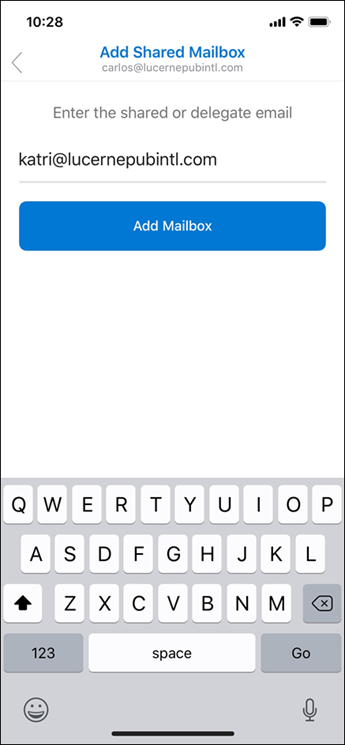
After the setup process has been completed, the shared mailbox will be displayed in your account list in Outlook for IOS.
To remove a shared mailbox, go to Settings > Accounts. Then tap the shared mailbox you want to remove and select Delete Account.